Why does Search Console say your sitemap couldn’t be fetched?
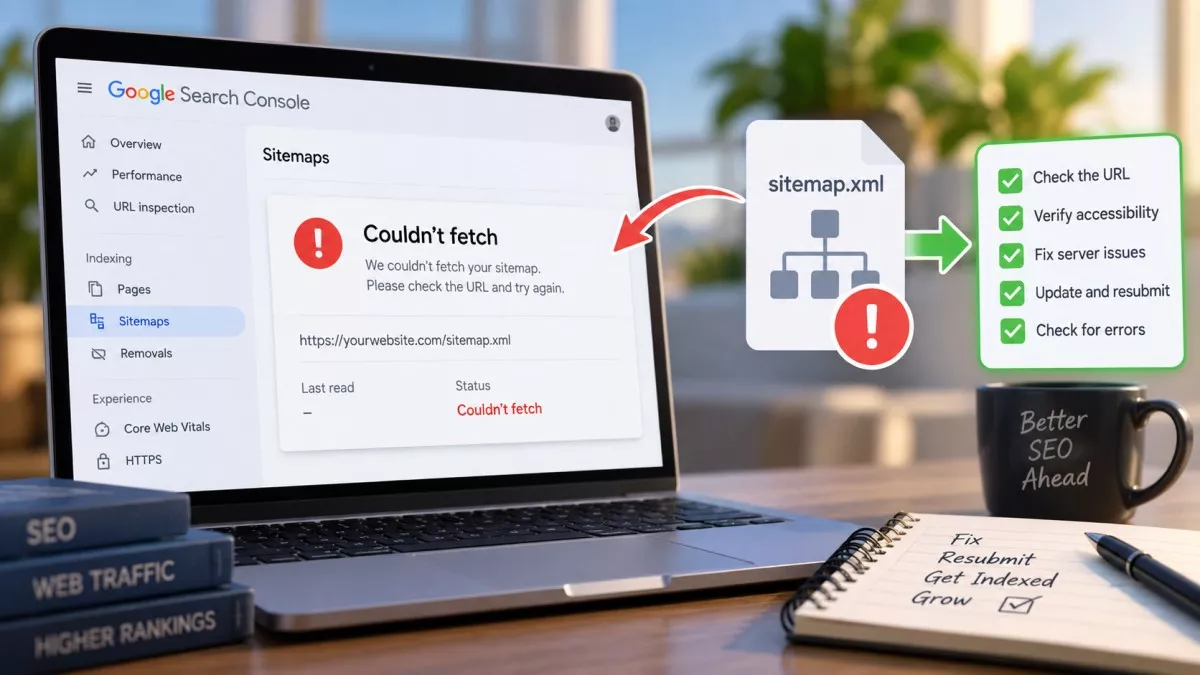
Search Console says “Couldn’t fetch” when Google’s last attempt to download your sitemap file failed, which is not the same thing as your sitemap being broken. Google may have been blocked by your host, handed an error, given a web page instead of XML, or simply not tried yet.
The maddening part is that you can paste the same URL into your browser and watch it load perfectly. That gap between what you see and what Google saw is the entire problem. Worked through in the right order, it usually takes about ten minutes.
What does “Couldn’t fetch” mean in the Sitemaps report?
It means Google could not retrieve the file at the URL you submitted, so it never got as far as reading what was inside. Google’s documentation for the Sitemaps report lists three outcomes: Success, where the sitemap was fetched and read without errors; Has errors, where it was fetched but something in it would not parse; and Couldn’t fetch, where the file never arrived.
That distinction is doing more work than it looks. Has errors is a problem inside your XML. Couldn’t fetch is a problem with the request itself: the URL, the server, or whatever sits in front of the server deciding who gets served.
Google pairs the status with a detail line, and that line is the most useful thing in the report. “Sitemap could not be read” and “General HTTP error” are the two you will see most, but a code such as HTTP Error: 403 names the exact response your server sent, which turns a mystery into a five-minute job.
Why does the sitemap open in your browser but fail for Google?
Because your browser is not the client Google sends. You arrive with cookies, a residential IP address, a complete browser fingerprint and often a logged-in session, while Googlebot arrives as an unfamiliar crawler from a data centre. Plenty of security layers treat those two visitors very differently.
The clearest version of this is a firewall or bot-protection rule that answers crawlers with 403 while serving everybody else normally. It is a routine finding on managed hosting and CDN plans. Rule it out first: in that scenario nothing is wrong with your sitemap file, and every minute spent editing it is wasted.
Server load produces the same symptom with a different code. A 503 during a plugin update, a request that times out while a large sitemap is generated on the fly, a DNS blip lasting four minutes: any of those can land on the one attempt Google made, and none will still be there when you check an hour later.
What actually causes a sitemap fetch to fail?
There are 8 causes worth checking, roughly in the order they turn out to be the answer:
- A 403 from a firewall or CDN - Your security layer is blocking crawlers, and your browser never sees it happen.
- A 404 at the URL you submitted - The path moved. Plugins shuffle between sitemap.xml and sitemap_index.xml more often than anyone expects.
- A redirect - Submitting the http version, or the non-www version, sends Google through a hop before it ever reaches the file.
- A 5xx or a timeout - The server was busy, restarting, or too slow to build the file inside the request.
- A robots.txt rule - A Disallow that matches the sitemap path stops Googlebot requesting it in the first place.
- HTML where XML should be - Maintenance screens, login walls and soft error pages are frequently served with a 200 status code.
- A file over the limits - One sitemap holds 50,000 URLs or 50MB uncompressed, per Google’s sitemap documentation, and it has to be UTF-8 encoded.
- Nothing whatsoever - You submitted it twenty minutes ago and Google has not been round yet.
That last one catches people on brand-new properties who resubmit six times in an afternoon and talk themselves into a crisis.
How do you see what your sitemap URL returns to something that is not your browser?
Request it from outside your own session, with a crawler’s user agent if you can. The Bulk HTTP Status Code Checker sends the request from a server rather than from your browser, carries a user-agent selector with a Googlebot option, and prints every hop with its status code, so a redirect chain or a 403 arrives as a row in a table instead of a hunch.
One limit is worth knowing before you trust the result. It sends the Googlebot user-agent string from an ordinary IP address, and Google’s own advice is to verify crawlers by IP range or reverse DNS rather than by that string. A firewall doing it properly waves the test through and keeps blocking the real Googlebot. A pass is encouraging, not proof.
The check that settles it lives in Search Console. Paste the full sitemap URL into the inspection box at the top and run the live test, which asks Google to fetch that URL right now and report what came back. If the live test reaches the file while the Sitemaps report still says Couldn’t fetch, you are probably looking at a stale status rather than a live failure.
Can robots.txt stop Google fetching your sitemap?
Yes, and it is the cause you can fix fastest. A Disallow rule matching the sitemap path stops Googlebot requesting the file at all, and the rule almost never mentions sitemaps by name: a broad Disallow: /wp-content/ quietly takes out any sitemap living under that folder.
Paste the file and the sitemap URL into the Robots.txt Tester and it names the rule that decided, which beats reading forty lines of directives and hoping. Do this even if you never touched the file; security and caching plugins write rules into it without announcing them.
While you are in there, confirm the Sitemap: line points at a URL that still exists. Google announced in June 2023 that the sitemap ping endpoint was going away, leaving robots.txt and Search Console as the only two ways to tell Google where your sitemap lives. Any plugin still pinging the old endpoint is collecting 404s on your behalf.
Does “Couldn’t fetch” stop your pages being indexed?
No. A sitemap is a hint about which URLs exist, not a gate your pages pass through, and Google finds most pages by following links. Site owners regularly report a sitemap stuck on Couldn’t fetch for weeks while new posts carry on getting indexed on schedule.
Where the failure genuinely costs you is discovery. A page nothing links to, a new site with no inbound links, an archive buried twelve clicks deep: those are the URLs a sitemap earns its keep on, and they are the ones sitting unfound while the fetch keeps failing.
So treat it as maintenance rather than an emergency. If your traffic fell the same week, the sitemap is not the reason.
How long does the status take to clear after you fix it?
Google does not publish a figure for this, and anyone quoting you one is guessing. According to Google’s Sitemaps report documentation, a failing sitemap is retried for a few days and then dropped if it stays unavailable, which tells you the report shows the result of an attempt rather than the state of your file right now.
Resubmit the same URL once after you have fixed the cause. That queues a fresh attempt. Then leave it, because the status flipping to Success is not what gets your URLs crawled.
Should you delete the sitemap and submit it again?
Deleting and re-adding achieves nothing a plain resubmission does not, and the popular advice to rename the file is a workaround rather than a fix. It does sometimes clear the status, which is why the advice spreads.
Think about why it works. A new filename is a URL Google has never failed on, so it gets a clean set of attempts while the old one had used up its retries. If a firewall rule or a robots.txt line caused the block, the new name will fail the same way about three days later, and you will have learned nothing in the meantime.
The other habit worth dropping is submitting five variants of the same URL to see which sticks. It leaves a permanent list of failing entries, and the next person to open that property, quite possibly you in six months, will not know which sitemap is the real one.
Does the lastmod date have anything to do with this?
No, an unsupported lastmod date produces Has errors rather than Couldn’t fetch, because Google has to fetch a file before it can object to what is inside it. The date format only gets checked once the sitemap has been read.
Fix it anyway. Google uses lastmod to schedule recrawls of URLs it already knows, and has said plainly that dates which do not match reality eventually stop being believed. A sitemap that stamps today’s date on every URL every night is not sending a signal. It is sending noise.
If the file is hand-maintained and you are no longer confident it is even valid, rebuilding beats debugging. The XML Sitemap Generator turns a pasted list of URLs into a clean file with consistent dates, ready to upload in place of the old one.
Final Thoughts
Check the response before you change anything. Nearly every Couldn’t fetch that survives a day turns out to be a 403, a redirect or a robots.txt line, and all three are visible in a minute once you ask the URL what it returns instead of asking your browser. The file is usually innocent.
Frequently Asked Questions
No. Sitemaps help Google discover URLs and carry no ranking weight, so a failed fetch cannot push a page down. If rankings dropped in the same week, look at what changed on the pages themselves. The sitemap error is a discovery problem at worst, and often not even that.
Submit the index. Search Console lists the child sitemaps it finds inside, so you get the same detail with one entry to maintain. Submitting the index and its children separately duplicates every URL in your report without telling Google anything it did not already have.
No. Removing a sitemap only takes the entry out of the report. The URLs stay indexed, because they were indexed on their own merits rather than because a file listed them. Getting a page out of Google needs a noindex tag, a removal request, or a 404 or 410 response.
No. A sitemap is a list of pages you want crawled and indexed, so a noindex URL inside one sends two contradictory instructions. Strip them out, along with redirected URLs, canonicalised duplicates and anything returning a 404, all of which Search Console will flag eventually.